

How to Fix Dropbox Sync Issues

Fix Dropbox Not Syncing
If your files aren't showing up or Dropbox looks stuck, work through these in order — most sync issues clear up in the first two or three.
1. Check the icon
Look at the Dropbox icon in your system tray (Windows, bottom-right) or menu bar (Mac, top-right). A green checkmark means everything's synced; blue arrows mean it's working; a red or orange mark means something's wrong.
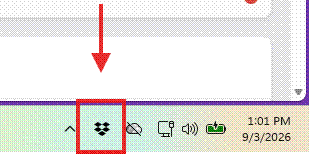
Screenshot: the Dropbox icon in the Laptop Tray
2. Read the error
Click the icon to open the Dropbox panel. If there's a problem, it'll usually tell you exactly which file and what's wrong.
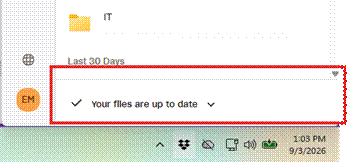
Screenshot: the Dropbox panel showing the status of the sync.
3. Pause, then resume
- Click the Dropbox icon.
- Click your avatar or the gear icon, then Pause syncing.
- Wait about 10 seconds, then click Resume syncing.
4. Restart Dropbox
Quit Dropbox completely (avatar/gear menu → Quit Dropbox), then reopen it from the Start Menu or Applications and give it a minute to reconnect.
Still not syncing after all that? Open a ticket (see How to Submit an IT Ticket) and mention what you already tried.
Internal ref: ORG-WI-APP-007 (v0.2)

